Mudkip Mud Sport

Mudkip's Mud Sport Journal

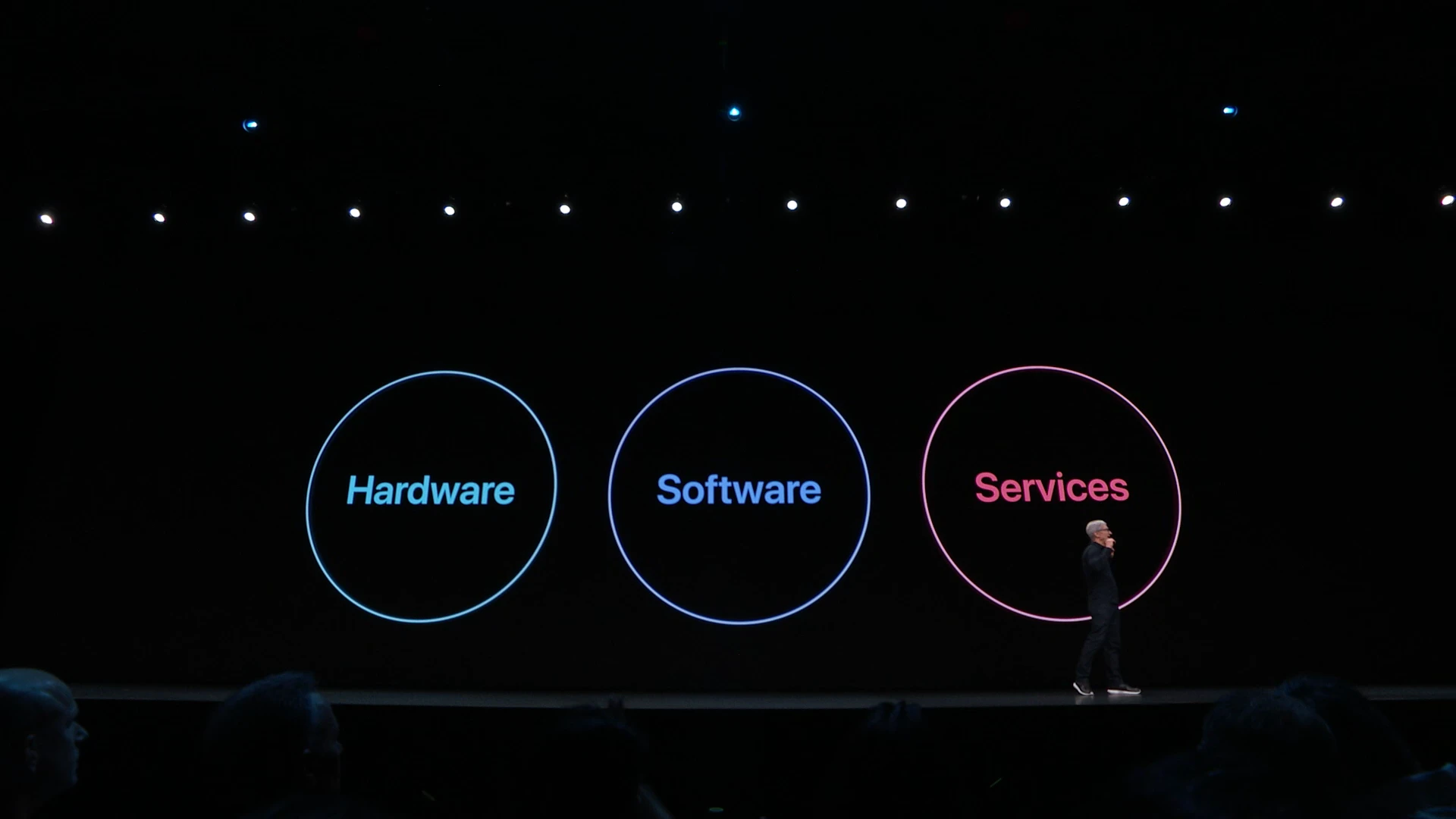
Hardware, Software and Services

An unpopular opinion that my past self would strongly disagree with, and perhaps my future self might too:

The days when we needed to integrate hardware, software, and services are over. Apple has shown that this approach is harmful to consumers and innovation today, and the same holds true for Nintendo. We only need open platform hardware that allows users to run whatever software they want and use whatever services they prefer. While I believe Valve’s monopoly needs to be strongly challenged, Valve’s success with its own games, Steam, and the Steam Deck shows that a company can succeed in all three areas without locking them together. Future Nintendo devices should be open by default, capable of running Linux or Android games without using any exploits, and future Nintendo games should be available on PC. Square Enix’s investment in Playtron shows they understand what’s coming.

Apple makes great hardware and software, and its services—like iCloud with Advanced Data Protection, iMessages with end-to-end encryption, high-quality Apple TV+ shows, and the DRM-free iTunes Music store—are truly exceptional. However, when these are integrated together, they create a monopoly. Apple today relies on “service revenue” to maintain its stock price, but much of this revenue isn’t genuinely about services. Instead, it largely comes from Google paying Apple to sustain their own illegal monopoly, and from the 30% “protection fees” charged on free-to-play games—essentially “casino games for children”—at the cost of undermining the rights and choices of users, developers, and creators. This situation is harmful to our civilization because, by being the only option for installing apps, the App Store becomes a tool for censorship and discrimination.

The Nintendo Switch was a major innovation in 2017. The concept of a small device that can be a portable console, a home console, and a tabletop system for friends to play together was definitely the right direction for gaming consoles. However, by 2024, the Nintendo Switch is underperforming and lagging behind the potential of Nintendo’s own games. Titles like Xenoblade, Pokémon, and Zelda could be significantly better if they can run on modern smartphone hardware, let alone on PCs, instead of on a 20nm processor released in 2015.

Sony announced the PlayStation 5 Pro this week, offering significant graphics upgrades for a dozen games. However, many of these titles can already be upgraded on a modern PC, thanks to Sony’s development of PC ports for PlayStation titles.

Joy-Con and DualSense controllers are fun and it’s fantastic that there are dedicated games that take advantage of their unique designs. However, they should use open standards like Bluetooth or USB and support general devices like PCs and phones. And guess what? They already do.

Today, we have a blooming market of dedicated handheld gaming consoles. If you follow NPC (Next Portable Console), you’ll notice new handhelds being released between every two episodes. These devices run on Linux, Android, or Windows and each supports a game library larger than that of the Nintendo Switch, PlayStation, or Xbox. This trend is just beginning, and we will see even more devices in the future. Eventually, these open systems will collectively become a larger market than traditional locked-down consoles, and no single vendor will be big enough to establish a monopoly.

I believe the future of technology lies in open systems that prioritize user choice, innovation, and competition over monopolistic control. As demonstrated by the evolving market of handheld gaming devices and platforms like Steam, Epic and GOG, there is a growing demand for hardware that supports diverse software ecosystems without restrictive barriers. This shift will empower developers and creators to have more freedom and flexibility and let consumers retake the control over their own devices and contents.

Ichiban Kasuga coming to Hawaii

I was not always a fan of games based on contemporary realistic settings—unless they had supernatural or sci-fi elements, featured high school students who are a bit detached from mainstream values, or were set in the subculture haven of Akihabara.

My RPG journey started with Pokémon, a world where numerous unimaginable creatures coexist with humans, and continued with games like Final Fantasy VII, which intertwines magic and technology in a futuristic setting, or the Trails series’ modern heroic legends. The first time I was moved by a work with a realistic setting was Persona 5, when the sin-laden Japanese Prime Minister had his heart stolen by a group of high school students, confessing tearfully on a giant screen on the streets of Tokyo.

The Yakuza series was something I had heard of for years but never engaged with, partly because I was resistant to the overly realistic and somewhat dark themes, and partly because as a player who wasn’t good at action games, I couldn’t be attracted by the game’s combat system.

However, as a fan of adventure genres like Ace Attorney and Danganronpa, I was very interested in Judgment, which drew me into the world and stories of the Yakuza series. After that, I played Yakuza 0, Yakuza: Like a Dragon, and Like a Dragon Gaiden: The Man Who Erased His Name in succession, and was moved by the stories of characters like Kazuma Kiryu, Goro Majima, and Ichiban Kasuga. The familiar locations I had visited during my trips to Japan, especially Yokohama Chinatown and Osaka’s Sotenbori, felt particularly nostalgic.

Like a Dragon: Infinite Wealth is the fifth game I’ve played in the series. I was looking forward to the new stage in Hawaii and how the story of Kazuma Kiryu, who has cancer, would unfold.

Game System

Similar to Yakuza: Like a Dragon, Like a Dragon: Infinite Wealth is a turn-based RPG, which is my favorite type of game. In the past, Yakuza games provided difficulty settings for players like me who aren’t good at action to experience the story, but the two turn-based RPG games didn’t provide difficulty settings. In the later stages of Yakuza: Like a Dragon, I got into tough battles and still haven’t completed the last few chapters. However, Like a Dragon: Infinite Wealth’s difficulty curve, more flexible battle system, and rich content made me feel that not having difficulty settings was a better choice.

As a turn-based RPG, Like a Dragon: Infinite Wealth has a wealth of jobs, skills, and equipment, but on the other hand, it doesn’t have an overly complex growth system and doesn’t require remembering too much knowledge about items and jobs. The game’s hints are user-friendly, allowing one-click selection of the best equipment. Like modern Pokémon games, WEAK and RESIST are directly hinted at in battles. Even before important story events and battles, it suggests recommended levels and equipment star ratings to avoid the frustration of repeated failure due to insufficient preparation when challenging. The positioning and environment considerations in battles are intriguing, and even though I am not good at QTE, they didn’t result in severe consequences (with practice throughout the game, I got slightly better).

In all significant battles, I experienced a just-right level of difficulty, requiring me to optimize team output through job and skill combinations. When unprepared for type resistances or status immunities, I often needed to use items or skills to recover but could ultimately achieve victory at critical moments.

As a fan of Pokémon and Animal Crossing, I could smile knowingly in this game. Yakuza: Like a Dragon already had enough homage to the Pokémon series with the Sujidex system, the initial 3 Sujimon choices, and the Sujimon Professor. This installment even includes mechanisms to capture and raising Sujimon, Sujimon battles, and even a Sujimon tournament held in Hawaii - and in reality, the 2024 Pokémon World Championships will also be held in Hawaii. Dondoko Island also completely reproduces the gameplay of Animal Crossing, with some characters from the main and side stories appearing as guests on Dondoko Island. These homage elements are subtle enough for players to appreciate without falling into the pitfalls of imitation and plagiarism, thanks to confidence that the game’s own main content is sufficiently substantial.

Setting and Story

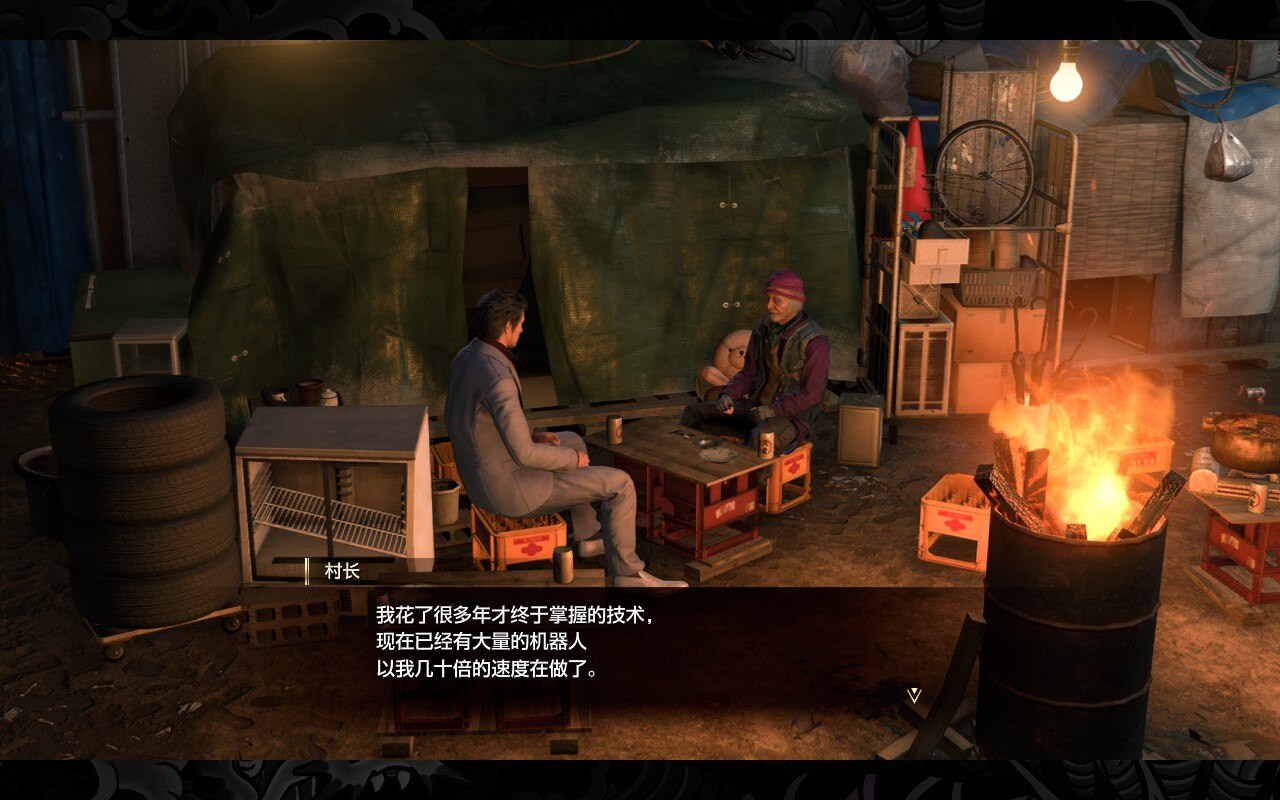
Laid-off workers being homeless

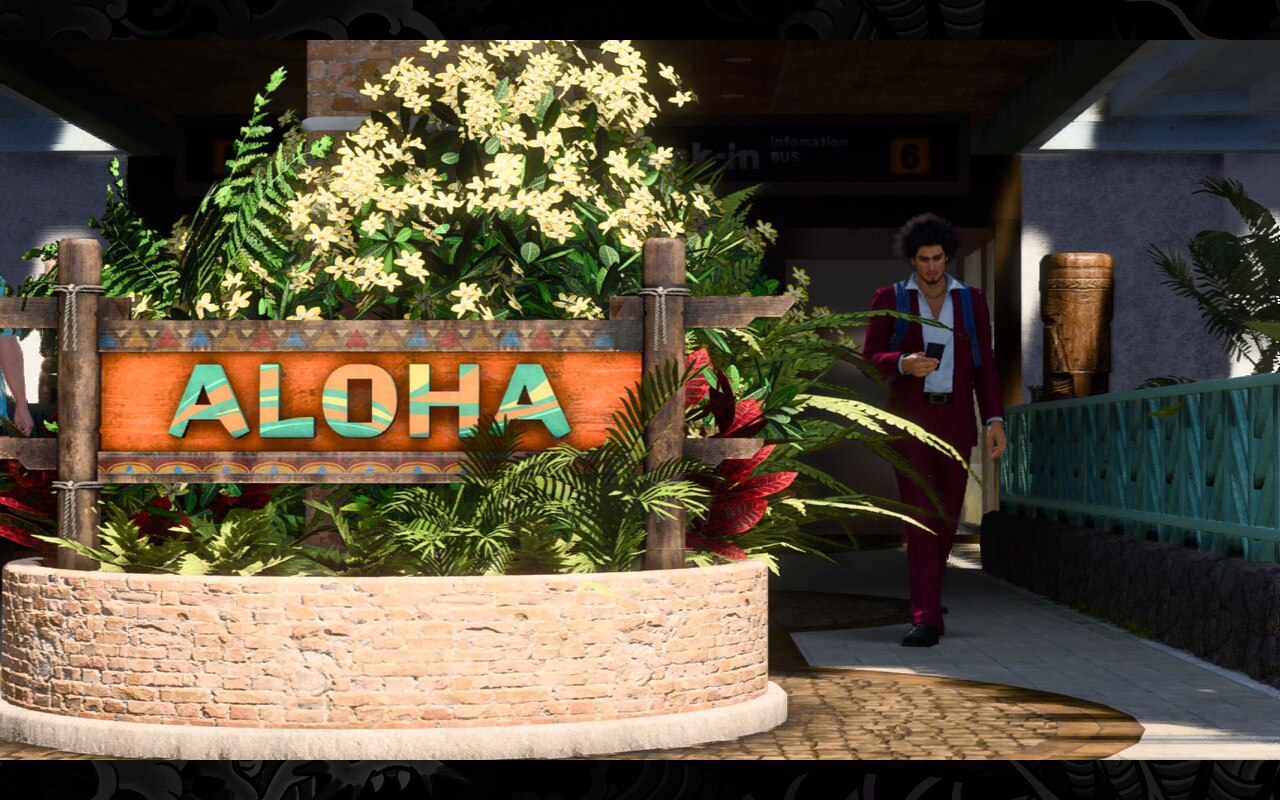
The Yakuza series’ previous settings mainly included Tokyo’s Kamurocho, Osaka’s Sotenbori, and Yokohama’s Isezaki Ijincho. This game introduces Hawaii outside Japan for the first time. Having played Pokémon Sun/Moon, the Honolulu setting in this game also conveys a similar atmosphere to the Alola region. The beautiful tropical scenery, beaches, coconut trees, surfboards, electric scooters, and the “Aloha” greetings all reflect a vibrant place. But just like the real history of Hawaii being annexed by the United States, Japanese laborers, and the Pacific War, beneath the surface of Hawaii in the work also lies gang activities, religious issues, and even international conspiracies that threaten human survival.

Both in Yokohama and Hawaii, the main and side stories incorporate many popular contemporary elements. Influencer economy, the popularity of online streaming and VTubers, manipulation of public opinion, random rumors causing online violence, workplace discrimination are all not uncommon topics in the real world in recent years. In Like a Dragon Gaiden: The Man Who Erased His Name’s Sotenbori, a young man relies entirely on “ChatDDT” for dating advice; in this game’s Ijincho where the homeless are sheltered, there are also ordinary people who have been laid off and fallen to the streets because their years of work skills have been replaced by robots. In Hawaii, topics about police and judicial corruption make it easy to think of events that have occurred in the United States in reality.

(The following parts contain mild spoilers for this game)

The game begins in Yokohama’s Isezaki Ijincho, where the protagonist, Ichiban Kasuga, becomes a Hello Work employee helping former yakuza members reintegrate into society amid the Great Dissolution, while Namba, Adachi, and Saeko have all started their own businesses. However, this peace turns to naught after an online livestream, and the “five-year antisocial force” rule becomes a shackle preventing many from returning to normal life, nearly turning them into sacrifices for an international conspiracy. These plots inevitably reflect the harshness of real-life “lifelines” where societal expectations set a standard route for everyone, and deviating slightly could lead to inescapable fates. The game doesn’t express opinions on these issues but encourages players to reflect through the characters’ perspectives.

The game also discusses the topic of nuclear waste, an issue of real-world controversy over nuclear energy safety and Fukushima’s radioactive water discharge. While not directly addressing real-life topics, the story of Kazuma Kiryu getting cancer because of it and the protagonist’s group stopping the sea shipment of nuclear waste both tell us ordinary people who have enjoyed the benefits brought by nuclear power plants that we have a duty to pay attention to and oversee the risks brought by nuclear energy.

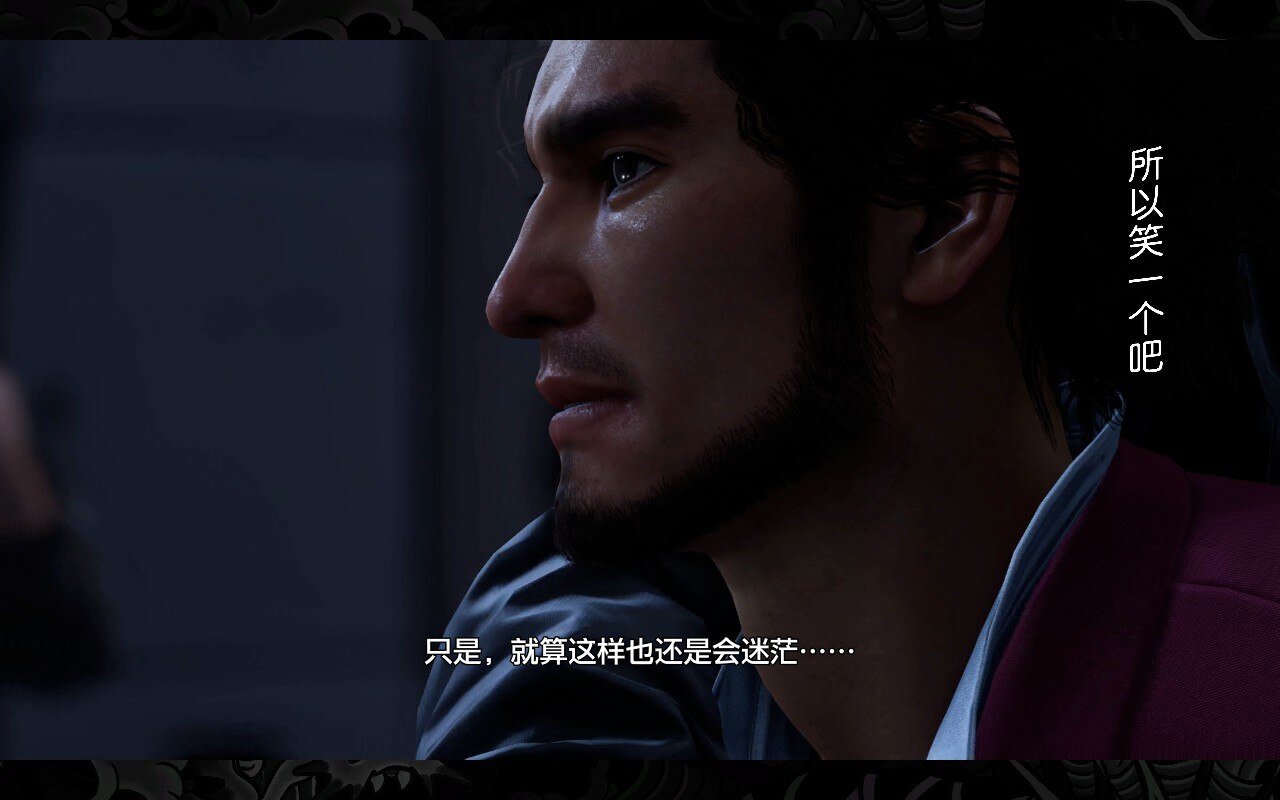
俺を産んでくれて ありがとうございます

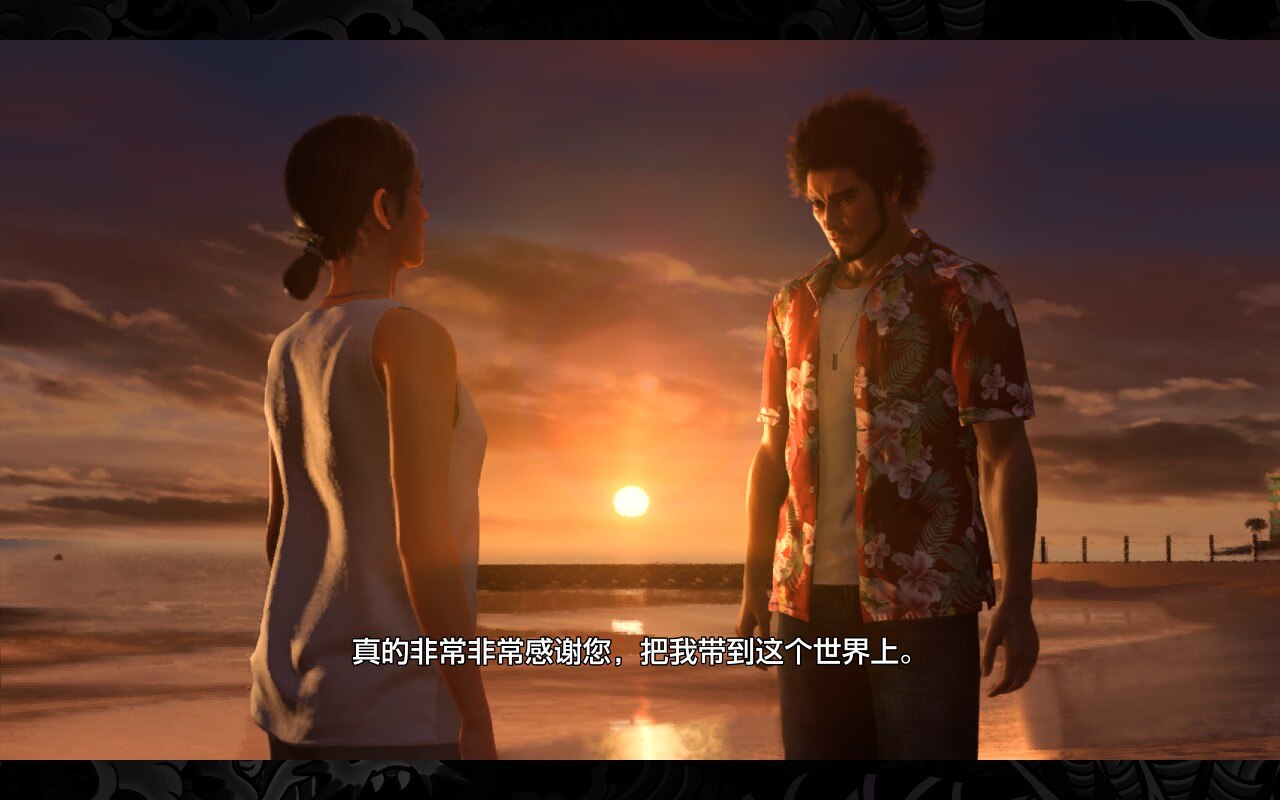
The warmth of familial love in the game is touching, from Ichiban’s search for his birth mother to Chitose’s conflict and reconciliation with her family, and Wong Tou’s tragedy. Hearing Ichiban say “Thank you for giving birth to me” to Ms. Akane by the sea in Chapter 11 brought tears to my eyes.

Characters

Chitose and Ichiban

Ichiban Kasuga continues to maintain the standard hero setting, considering others in everything he does, acting impulsively, trusting others too much, and handling romantic relationships in ways typical of many JRPG protagonists. In this work, Ichiban’s way of handling things lays the groundwork for major losses in the middle of the story, but on the other hand, it’s also the reason why Tomizawa and Chitose can join the team.

It’s regrettable that I haven’t experienced the six installments from Yakuza 1 to 6. My impression of Kazuma Kiryu is the tough guy with a strong sense of justice in Yakuza 0 and the behind-the-scenes hero living under an assumed name in Like a Dragon Gaiden: The Man Who Erased His Name. In this game, Kiryu has a lot more human touch, learning to reconcile with himself and face his past in the experience of facing the threat of death, and learning to rely on his companions. This change may remind one of Rean from the Trails series.

The solid friendship between Namba, Adachi, and Ichiban established in Yakuza: Like a Dragon is further solidified in this game. In Namba’s Drink Link, when Namba discovers that his loss of job is not because of being implicated by the rumors about Ichiban, the player also breathes a sigh of relief.

The Yakuza series has many characters who suffered injustices, each with a story of downfall because of it, and the taxi driver Tomizawa is no exception. However, what’s rare is the courage to let go of the past after restarting in life and to bless the people you once knew.

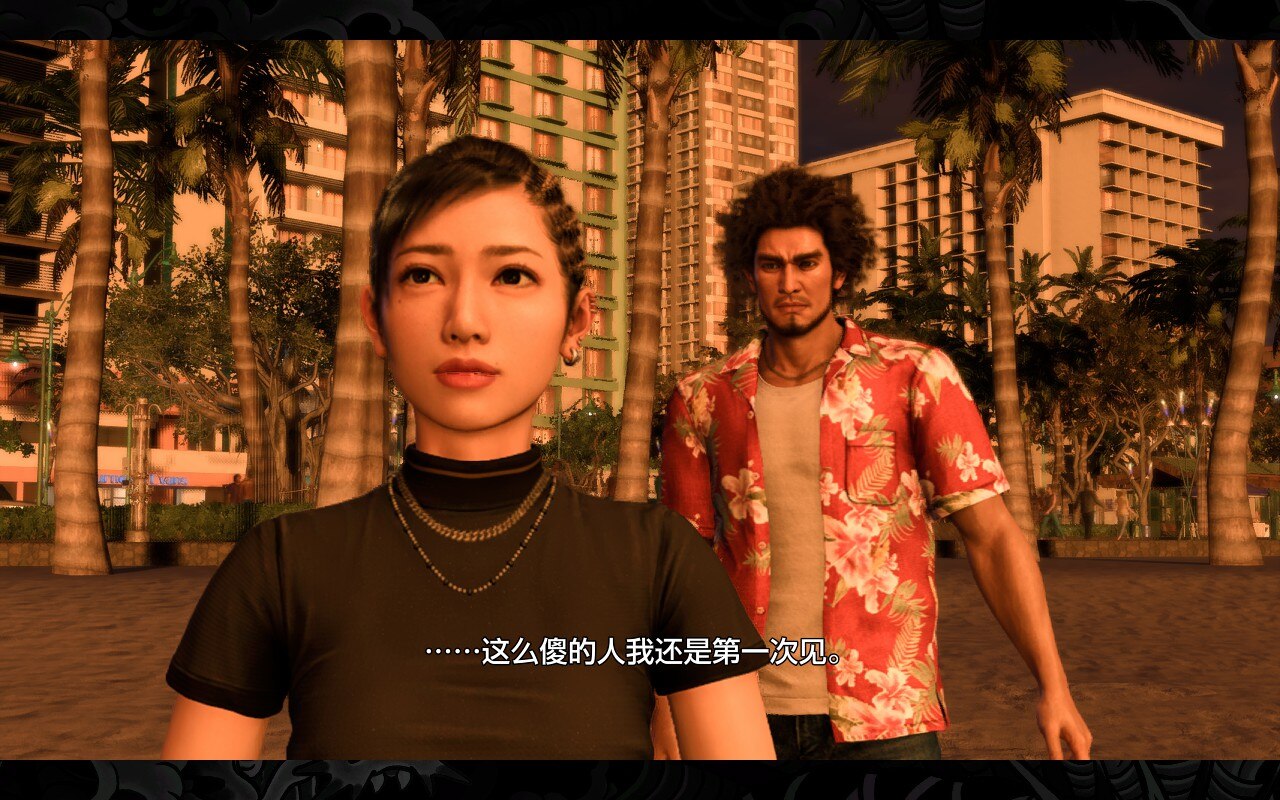
Chitose always felt familiar to me, and I realized she was voiced by Anju Inami, who played Chika Takami in LoveLive! Sunshine!!. The character design also somewhat resembles Anju’s persona. Chitose is a charming and complex character. As a player, on one hand, I trust this companion like Ichiban does, but on the other hand, I’m also a bit worried that something will happen because of her (which does come true).

Saeko appears less in this game but leaves a strong impression with her date and rejection of Ichiban’s confession. However, in the conversation with Kiryu, you can actually feel that Saeko, like Ichiban, has a hard time facing her own heart.

Seonhee, Tianyou Zhao and Joongi Han, who led Yokohama’s underground world in the previous game, become playable characters in this work and provide considerable combat power to the protagonist’s team. Thinking of the Geomijul in the previous game still makes me shudder, but Seonhee’s job skills and status effects also make me chuckle.

The villains in this game, whether driven by misplaced hatred or just pure evil, nearly succeed in their conspiracy, which is inseparable from the support of the Japanese and American state apparatus and even the public, making one sigh with emotion. The English title “Infinite Wealth” is interpreted by the villains as the endless wealth generated by this conspiracy, but the lives of the protagonists and the story of their battle also give this title a more important explanation.

Conclusion

ありあまる富

In an era dominated by free-to-play games, during the turbulent start of 2024 in the global gaming industry, it feels fortunate to experience an excellent single-player game like Like a Dragon: Infinite Wealth - in fact, the first two months of 2024 also had works that made people feel “it’s great to be alive” like Persona 3 Reload, Apollo Justice: Ace Attorney Trilogy, Final Fantasy VII Rebirth, as well as the exciting announcement of Pokémon Legends Z-A.

Like a Dragon: Infinite Wealth addresses real-world issues, bringing to light the difficult-to-ignore yet unspeakable aspects of our world. The game uses Dragon Quest-style idealism to solve immediate problems but also highlights that the other side of this world, such as online rumors and violence, the “five-year antisocial force” rule, nuclear waste and pollution, cannot be resolved by politicians or individual heroes alone. Perhaps the most important artistic value of games is to inspire thought and try to create the possibility of a better real world.

Minisforum V3 AMD Tablet

Update: I have created an awesome-minisforum-v3 GitHub repository to list information for Minisforum V3 users, including some workarounds for the issues mentioned in this review.


Quest for the Ideal Portable Linux Device

After my 2016 MacBook Pro experienced multiple hardware issues and was sent for recycling, I no longer have a personal laptop. Until recently, if I wish to do some programming in a coffee shop or during a family trip, my only options are the corporate-provisioned MacBook or my iPad Pro 2020, neither of which is ideal. I had hoped the iPad Pro could be more productive and tried various setups involving code-server and remote development, but I encountered many limitations. Furthermore, the fact that Apple has restricted iPadOS, preventing me from installing any software I want, has become increasingly uncomfortable for me in light of the recent Digital Markets Act and antitrust discussions.

I adore the form factor of the iPad Pro as a travel computer, and the concept of a MacPad is indeed extraordinary. However, I’m hesitant to invest significant time and money into a custom product that might not have the bless of its manufacturer. Additionally, memories of the Microsoft Surface have resurfaced. I owned a Surface 3 many years ago but sold it due to its performance not meeting my needs, eventually replacing it with a Hades Canyon mini PC.

As I’ve become more immersed in Linux, both through my Homelab VMs and my desktop PC, the idea of owning a portable Linux device appeals to me. However, I must confess that I’m not fond of the design of most mainstream non-Apple laptops, and Linux-friendly laptop brands like Framework, System76, and Starlabs are not yet available in my region. I’ve experimented with Asahi Linux on my iMac, and while it offers a generally great experience, the ARM Linux ecosystem, especially with 16K pages, doesn’t quite meet my daily needs.

Ultimately, I’m in search of a Surface-like device that offers good performance, runs Linux well, and is ultraportable. Although the Surface Pro 10 was released just as I began my search, Microsoft’s pricing strategy—essentially doubling the price of the whole device for adequate RAM and SSD—is unacceptable to me. It seems Microsoft has taken the wrong lessons from Apple in this regard, and I believe such pricing strategies should be considered unethical.

Discovering the V3 Tablet

During my search, I discovered an intriguing product from Minisforum, a manufacturer renowned for creating NUC-like mini PCs, which has gained popularity within the Homelab community. The tablet, named “V3,” has been in development for over a year. Initially, it was developed by another manufacturer with an AMD Ryzen 7 6800U processor. Later, Minisforum took over the project, replacing the processor first with the 7840U, and ultimately with the 8840U in the final product.

The tablet features a 14" 2.5K 165Hz P3 color touch screen, a 50.82Wh battery, four speakers, front and rear cameras, and face and fingerprint unlocking, along with two USB4 ports. Surprisingly, it also features a USB-C port labeled “VLink” or “DP-in,” enabling the tablet to function as an external display for other devices. This is a feature I’ve long believed should be standard on all screens and regret its absence in recent iMacs. My curiosity was piqued about how Linux would perform on this device.

The tablet was released on March 29 locally, and its price was set at 6999 CNY (~968 USD) for the configuration with 32GB DDR5 RAM and a 1TB SSD—a price point I consider quite reasonable. Early buyers were offered a keyboard case at no extra cost and had the opportunity to purchase the MPP 2.0 stylus for just 200 CNY (~28 USD). Moreover, it was mentioned that Linux runs on this tablet, with support for Ubuntu 22.04 and 23.10, albeit with “only a few minor issues” that are currently being addressed. I placed my order on day one and have been playing with it over the past few weeks.

Initial Experience

My first impressions of the V3 tablet were less than ideal, primarily due to Minisforum’s approach to selling and shipping the initial units. Although the kickstand and keyboard case were offered for free to early buyers, there was a catch: they were shipped after leaving a review on the online retailer JD. The absence of both the kickstand and the keyboard significantly detracted from the user experience. Additionally, a bug in Windows 11 prevented me from creating a PIN code to complete the setup, a problem that could only be resolved by connecting a USB keyboard. Placing the tablet on a table without the kickstand led to the air opening on the back being covered, which is far from ideal for airflow.

I believe that shipping the free kickstand and keyboard with the tablet would lead to more positive reviews by significantly improving initial customer satisfaction. I hope global customers won’t have to wait for the kickstand, keyboard, and stylus to be shipped separately, as international shipping could add to the frustration.

The V3 tablet comes with Windows 11 Pro, a detail I find quite welcoming, even I primarily intend to use Linux desktop on this device, as most laptops in this price range only come with the Home edition of Windows. The Pro edition grants users more control over BitLocker encryption, which is crucial for a portable device. Additionally, Hyper-V is important for those who need to install VMs on Windows.

The screen’s color and brightness are exceptional. Initially, I didn’t anticipate the 165Hz refresh rate to be a significant feature for this tablet, assuming that most games would struggle to run at 2K on the integrated GPU and that I didn’t have any videos exceeding 60Hz to watch. However, the difference in UI smoothness between 60Hz and 165Hz is stark, making it hard for me to revert to the lower refresh rate.

It’s somewhat disappointing that the tablet’s resolution is only 2.5K; at this screen size, I believe 2.8K or 3K would be optimal for 200% integer scaling. Nonetheless, given that KDE and Wayland now adequately support fractional scaling at 175% and the AMD GPU has good Wayland compatibility, this resolution is acceptable. Consequently, content on the V3 tablet appears as sharp as on MacBooks other than 14 and 16 inch MacBook Pro, which has 254 pixels per inch.

Linux on the Device

Unlike my desktop PC, which runs EndeavourOS, I chose Fedora KDE for this tablet. My preference for Fedora stems from its relatively newer kernel and desktop environment, as well as its out-of-the-box support for secure boot. The latter is particularly crucial for a portable computer, allowing me to enable full disk encryption and set up automatic decryption via TPM with systemd-cryptsetup. My choice to stick with KDE was primarily due to its excellent support for scaling Xwayland applications. Although many GTK4 apps appeal to me—and I can still use them within KDE—GNOME has continued to refuse to address the issue of Xwayland apps appearing blurry on HiDPI displays.

I was concerned about hardware support on Linux, but my experience turned out to be reassuring. The touchscreen, keyboard, touchpad, Wi-Fi, USB, Bluetooth and suspend/sleep all work without any issues. It’s surprising that the fingerprint reader on the power button works right out of the box. After adding my fingerprint in KDE settings, not only can I use it on the lock screen, but I can also use my fingerprint to unlock sudo commands in Konsole with no extra setup. Both the front-facing and back cameras work well. I didn’t try face unlocking because I actually prefer using touch over face recognition.

Most apps I installed on V3 are similar to those on my desktop PC, only I use dnf instead of pacman. I don’t need to configure Wayland for Chromium and Electron apps, as Xwayland performs well with an AMD GPU. I couldn’t get Timeshift working with a btrfs filesystem inside a LUKS partition, so I switched to btrfs-assistant and snapper for automatically creating snapshots.

Enabling hardware acceleration for video playback in Fedora is somewhat weird. I need to add the RPMFusion repository and switch from mesa-va-drivers to mesa-va-drivers-freeworld to enable H.264 and HEVC hardware decoding, due to some absurd patent law issues.

Using the V3 as a Linux Tablet
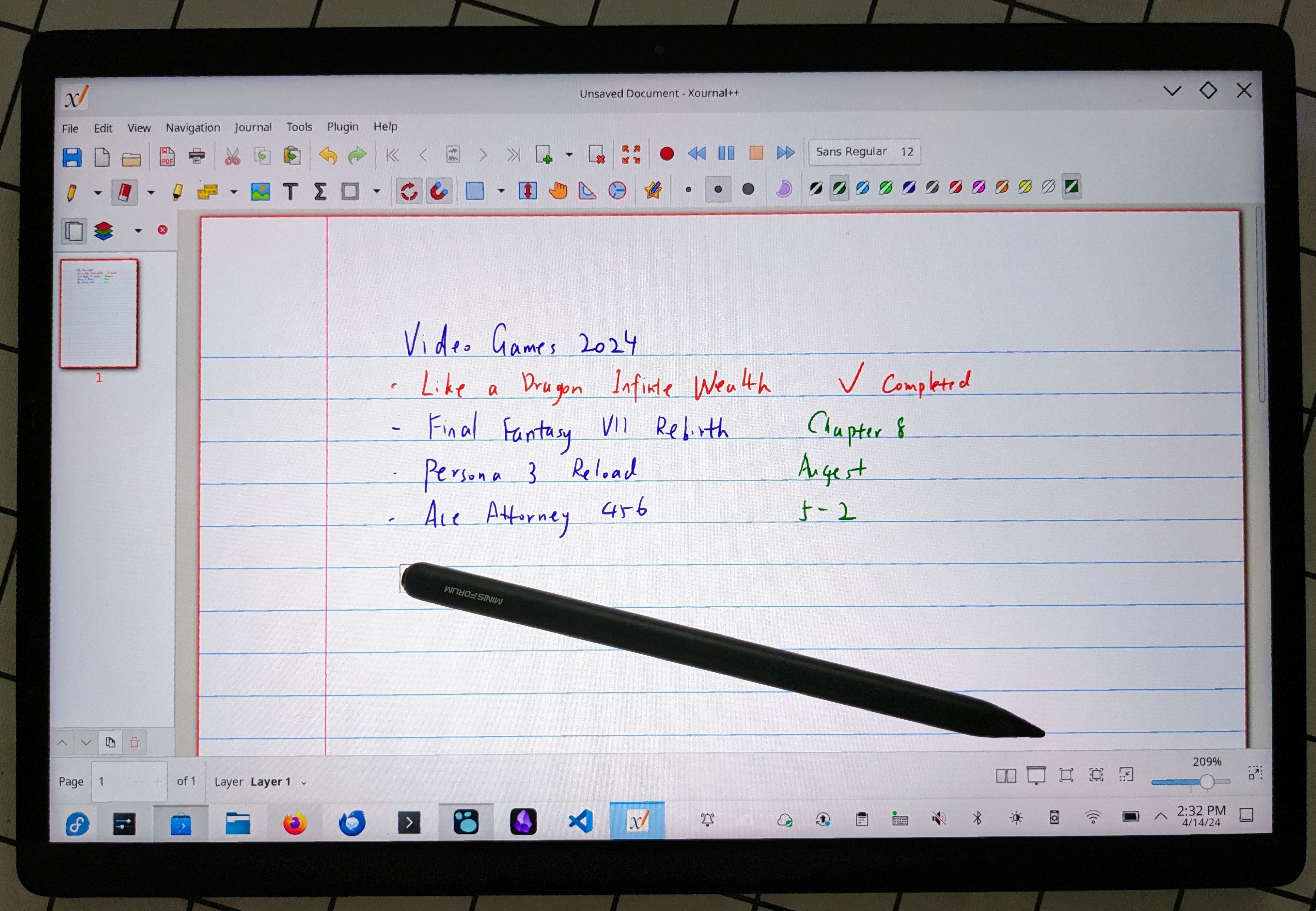
KDE Tablet Mode and Handwritten Notes in Xournal++

Using Linux with a touchscreen is as good as using Windows. I’ve used the desktop mode on the Steam Deck, and all the gestures are familiar. KDE has a “tablet mode” that enlarges the taskbar icons and many UI elements when I detach the keyboard, making it easier to tap.

The stylus is well-supported on Linux. Hover and pen pressure functionalities work great in apps like Krita and Xournal++. It’s a pleasure to take handwritten notes and annotate PDFs on this tablet, especially with the 165Hz refresh rate. Using the stylus makes selecting text and navigating the UI easier than using my finger.

The on-screen keyboard is a bit tricky here. Both Fcitx5 and Maliit use the virtual keyboard protocol on KDE Wayland. When the keyboard is attached, I use Fcitx5 for inputting Chinese or Japanese texts, and when detached, I switch to Maliit for the on-screen keyboard. I haven’t found a way to automatically switch between these two, but I believe it’s possible. Maliit supports multiple languages and can be configured with gsettings set org.maliit.keyboard.maliit enabled-languages "['en', 'zh-hans', 'ja', 'emoji']".

I use Waydroid to run Android apps on the V3 tablet, with support for Google Play and arm translation. Some apps, like Google Play Books and Pocket Casts, work great. However, the performance and experience don’t compare to a native Android tablet. I considered using Microsoft OneNote as a cross-platform tool for my handwritten notes, but there’s a major issue with OneNote for Android on Waydroid—the handwriting doesn’t appear on the screen until I lift the stylus, touchpad, or finger. Another issue is video playback; while I have hardware acceleration in Linux apps like Firefox, mpv, and VLC, Android apps can only decode videos with the CPU, leading to worse battery life. Cameras do not work on Waydroid either.

One functionality missing in Linux on the V3 is automatic rotation. I have iio-sensor-proxy installed, and KDE Wayland should support automatic rotation out of the box. However, monitor-sensors reports there is no accelerometer. I hope Minisforum can address this issue with a driver or firmware update, or at least provide a DKMS module.

Another minor issue is that the volume keys on the side of the tablet only work when the keyboard is attached in Linux. I suspect this is a userland problem.
Performance and Battery Life

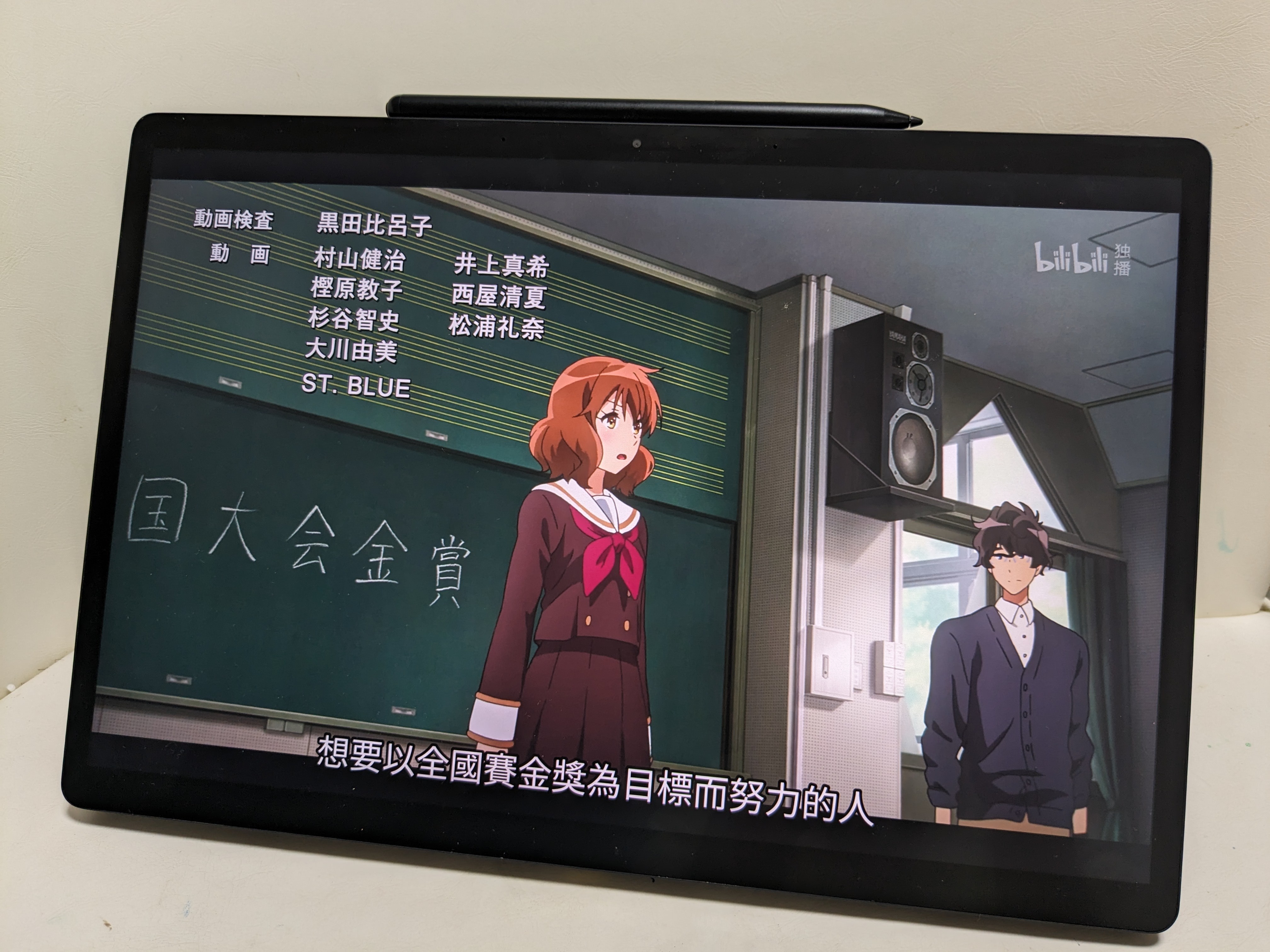
Watching Sound! Euphonium

The performance of the AMD Ryzen 7 8840U is outstanding. It outperforms my M1 iMac in tasks such as building Android apps and the 7z b benchmark. Its single-core performance surpasses that of my Core i7 12700 homelab PC, though the 12700 only performs better in multi-core tasks because it has four more E-cores. I haven’t conducted extensive benchmarks, and I haven’t yet managed to get Handbrake working with AMD VCN on Linux to test its hardware-accelerated video encoding speed. However, the KDE UI and most applications feel as fast as my Dragon Canyon desktop PC equipped with an RTX 3080. In some cases, it feels even snappier, due to the ongoing issues between NVIDIA and Wayland, which are expected to be resolved very soon.

During my normal usage in Linux, which includes web browsing with Firefox, video playback with Haruna Media Player (with hwdec set to auto), writing in Obsidian, and lightweight coding in Visual Studio Code and Android Studio, the tablet lasts for 6 hours. The battery life is not as long as that of Apple Silicon MacBooks but it is satisfactory to me and better than what I remember from using Intel MacBooks. The battery life might vary with Windows, potentially achieving longer duration.

Gaming on this tablet delivers performance in line with what you would expect from the Radeon 780M integrated GPU. I’ve tested it with two recent games I’m playing. I can play Persona 3 Reload at high settings (though with Ray-Traced Reflections disabled) at 1200p and 60fps. For Like a Dragon: Infinite Wealth, I achieve 55 to 60 fps at high settings (with FSR set to optimize for frame rate) in 1200p. Both games perform much better than on the Steam Deck. The frame rate only drops slightly when reducing the TDP from 28W to 15W, showcasing the efficiency of the GPU under varied power conditions.

The tablet is marketed as an “AI PC,” due to the AMD Ryzen 7 8840U processor, which features an XDNA NPU, and a keyboard equipped with a Copilot key. While local Large Language Models like Llama 2 perform rapidly and effectively using platforms like ollama and LM Studio, I believe these currently run on the CPU. As of now, I am not aware of any AI products specifically utilizing the NPU, but AMD does provide some tutorials which might hint at future developments that could leverage the NPU for enhanced AI performance.

Working as an Portable Display

The external display feature of the V3 tablet, which makes it a “3 in 1” device, is unique. Although this feature is still in its early stages based on my testing, I believe it represents a promising start.

The VLink USB-C port only operates when the computer part of the tablet is shut down. Unfortunately, there appear to be compatibility issues, as it doesn’t work with my M1 Macs using a USB-C cable. I tried two cables that function with my Mac and the LG UL850 display, but neither could activate the V3’s display. However, it worked fine when connected to my desktop PC. I suspect that the issue might be resolved by using a USB-C to DisplayPort dongle and a DisplayPort to USB-C cable, but this solution is too cumbersome. I hope a firmware update can resolve this issue.

When used as an external display, the keyboard case can also function as an external USB keyboard. This is particularly useful in setups where I want to configure a NAS or mini PC for eventual headless operation. However, it seems the V3 only supports a 60Hz refresh rate when used as an external display, and I’m not sure if this is due to compatibility or cable issues.

Another feature I hope to see improved in the future is the ability to turn on the Nintendo Switch’s TV mode with just one USB-C cable. I understand that Nintendo doesn’t use standard display protocols, making this a challenging feature to implement. However, I’m aware of portable displays that support this feature. It would be incredibly valuable for travel with the Nintendo Switch, and I would be willing to pay extra for this capability.

Other Hardware Details

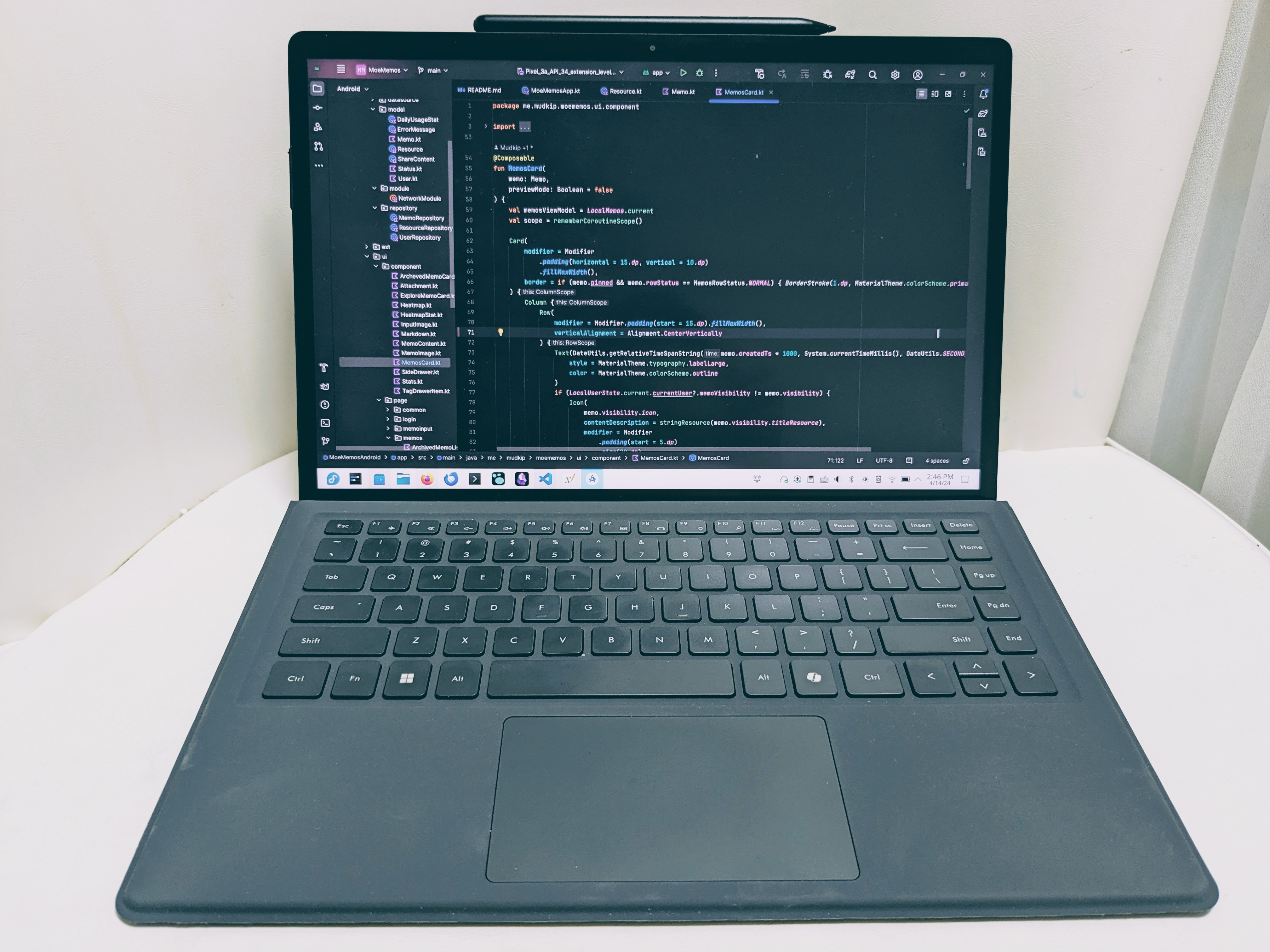
The form factor of the V3 tablet is similar to a Microsoft Surface Pro, especially when the keyboard is attached. However, the kickstand is separate from the tablet, which makes the entire setup slightly heavier. I prefer the integrated kickstand design of the Microsoft Surface and Nintendo Switch OLED, but the separate kickstand does provide a wider range of angles.

The tablet is completely sealed with no visible screws for opening, which raises concerns about long-term repairability, especially if the cooling system degrades over time. While a 1TB SSD is sufficient for my needs with this device, it would be beneficial for users who require more storage if it can replace the NVMe drive.

The speaker is loud and good, but there seems to be an issue with volume control in Linux. The global volume control can only mute or unmute the speaker, while the actual volume is controlled at the application level. I suspect there might be some driver issues, as when I use headphones, both the global and application level volume controls work well.

The keyboard case is quite pleasant to use. While I might still prefer the feel of the Magic Keyboard, this one comes close. The key layout feels just right. I particularly appreciate that the keyboard includes dedicated Home, Pg Up, Pg Dn, and End keys on the right side. This is especially useful to me, as I’m primarily familiar with macOS/Emacs shortcuts for these commands, which are not supported in Linux except within the terminal.

The fan noise is a mixed bag for me. During the day, even under heavy workloads, I can barely hear the fan. However, at midnight, when my room is completely silent, I can often hear a strange, faint buzzing noise coming from the tablet. This noise disappears when I run benchmarks or play games that maximize the fan speed. It’s not like the typical fan noise but resembles the sound of an HDD, though at a much lower volume. It seems this noise might be caused by the fan frequently changing speeds or being affected by the magnets in the tablet. I’d be interested to hear if others have experienced this issue, and if it turns out to be unique to my unit or an early production issue, I’ll replace it under warranty.

Conclusion

After two weeks of use, I consider the Minisforum V3 AMD Tablet to be a nearly perfect portable Linux device. It offers a promising blend of performance, versatility, and Linux compatibility at an acceptable price point. This tablet is an excellent start for tablets featuring AMD APUs and those that triple as external displays. However, I hope that the minor issues I’ve mentioned can be addressed, either through firmware updates or in the next iteration of the product. I also wish for some level of repairability, such as the ability for users to open the case to clean the fans or replace the NVMe drive. Looking ahead, I plan to bring the V3 tablet along for travel and weekends in coffee shops.
KDE Plasma 6

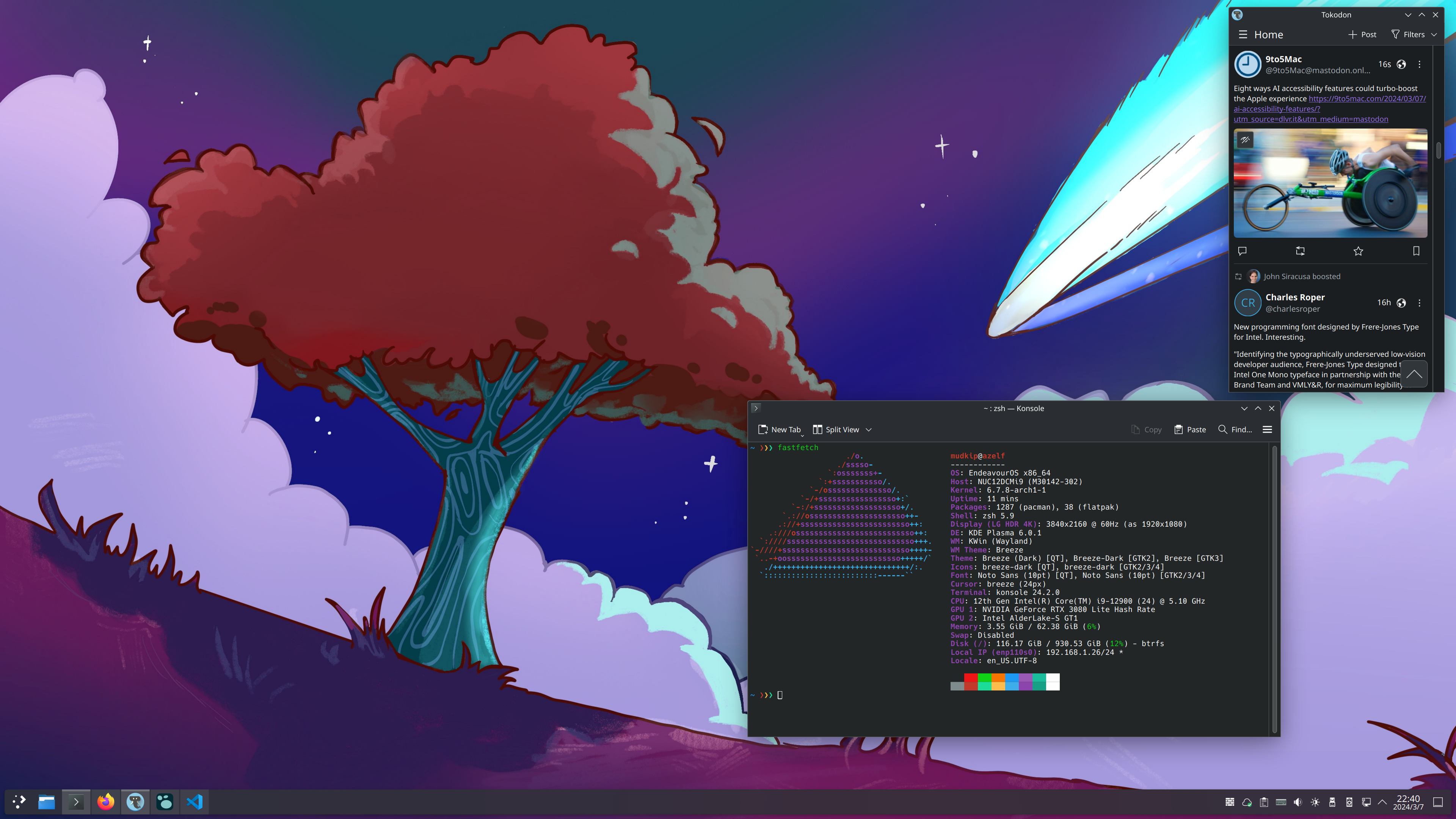
I have been using EndeavourOS on my Dragon Canyon NUC for months. It is my chosen Linux distribution because it offers an easy-to-install Arch Linux environment, and I am familiar with Arch Linux. I need to stay on the cutting edge for desktop environments, display protocols, and graphics drivers due to issues with NVIDIA and the Linux desktop (especially Wayland). Many developments are happening in real-time to improve them. With Arch Linux, I can easily install an AUR package from a merge request, as well as switch to beta drivers when they become available.

Wayland is important to me because I’m using a 27" 4K display. For the best visual size, it should be set to 150% fractional scaling. KDE Plasma supports fractional scaling under Wayland and has an option to “let Xwayland applications scale themselves” to prevent them from being blurry. That’s the reason I chose KDE as my desktop environment. Moreover, KDE Plasma 6 offers a nice experience both functionally and aesthetically.

Here is a note in Logseq that I use to track how I install and configure EndeavourOS. I’m interested in a declarative way to build operating systems and am slowly learning NixOS. However, in the meantime, I am very satisfied with my current EndeavourOS setup.


  • Configure the Windows Registry to use UTC hardware time:
    1
    reg add "HKEY_LOCAL_MACHINE\System\CurrentControlSet\Control\TimeZoneInformation" /v RealTimeIsUniversal /d 1 /t REG_DWORD /f
  • Disable Secure Boot and Fast Boot in the BIOS. If Fast Boot is enabled, accessing the BIOS by pressing F2 is difficult. Instead, I have to use Settings > System > Recovery > Advanced startup in Windows, and after rebooting, choose Troubleshoot > Advanced options > UEFI Firmware Settings to access the BIOS.
  • Flash the EndeavourOS ISO to a USB disk using Rufus, contrary to the documentation on the EndeavourOS website. I had to choose the GPT partition and ISO mode to make my PC recognize the boot drive.
  • Change network settings in KDE settings: manually set the IP address and DNS and gateway to 192.168.1.2.
  • Install EndeavourOS using the online installer, KDE desktop environment, erasing the Samsung 970 EVO disk with btrfs and without swap.
  • Eject the USB disk and reboot into EndeavourOS.
  • Install nvidia-inst using yay and run nvidia-inst to install the GPU driver, then reboot again.
  • Disable the Dummy HDMI Plug in Display Settings and set the scale to 150%; turn off Adaptive Sync.
  • Fix the suspend issue by preserving video memory as described here:
    • sudo nano /etc/modprobe.d/nvidia-power-management.conf
      • options nvidia NVreg_PreserveVideoMemoryAllocations=1 NVreg_TemporaryFilePath=/var/tmp
    • sudo systemctl enable nvidia-suspend.service
    • sudo systemctl enable nvidia-hibernate.service
    • sudo reinstall-kernels
  • Install the xorg-xwayland-explicit-sync-git and egl-wayland-git AUR packages using yay. This will make Xwayland issues with NVIDIA more manageable.
  • Install fcitx5-im and fcitx5-chinese-addons using yay, and select Fcitx 5 in System Settings > Keyboard > Virtual Keyboard; add Pinyin as an Input Method.
  • Copy .ssh/id_rsa, .ssh/config, and .ssh/id_rsa.pub from Windows on the same device.
  • Enable mdns and kdeconnect in the Firewall configuration.
  • Configure Firefox:
    • Extensions:
      • Mainichi
      • uBlock Origin
      • Bitwarden
      • floccus
    • Always show the bookmark bar.
    • Disable Recommend extensions and features as you browse.
    • Enable Proxy DNS when using SOCKS v5.
    • Disable DNS over HTTPS.
    • Disable Ask to save passwords.
    • Enable “Tell websites not to sell or share my data” and “Send websites a Do Not Track (DNT) request”.
    • Uncheck all checkboxes in Firefox Data Collection and Use.
    • Uncheck “Block dangerous and deceptive content”.
    • Toggle identity.fxaccounts.enabled to false in about:config.
    • Toggle extensions.pocket.enabled to false in about:config.
    • Set the homepage to “Blank Page”.
  • Disable “Show small window previews when hovering over tasks” in task manager options.
  • Arch packages installed with pacman:
    • flatpak
    • thunderbird
    • obsidian
      • Create .config/obsidian/user-flags.conf with --ozone-platform-hint=wayland --enable-wayland-ime.
    • bitwarden
      • Create .config/electron28-flags.conf with the following content:
        1
        2
        --ozone-platform-hint=wayland
        --enable-wayland-ime
    • fastfetch
    • docker
      • Add the current user to the docker group: sudo usermod -aG docker $USER.
    • cuda
    • libreoffice-fresh
      • Create .config/environment.d/env-vars.conf with SAL_USE_VCLPLUGIN=gtk3. This can fix text and icon sizes.
    • btop
    • htop
    • bottom
    • nvtop
    • gst-plugins-qsv
    • gst-plugins-bad
    • libva-utils
    • intel-media-driver
    • intel-media-sdk
    • intel-gpu-tools
    • handbrake
    • gimp
    • krita
    • thunderbird
    • kdenlive
    • remmina
    • freerdp
    • discover
    • kid3
    • merkuro
    • zanshin
    • tokodon
    • kasts
    • telegram-desktop
    • ttf-jetbrains-mono
    • zeal
    • kubectl
    • kubectx
    • zsh
    • rustup
    • nextcloud-client
    • neovim
    • tmux
    • inkscape
    • pastel
    • yt-dlp
    • k3b
    • bat
    • dust
    • git-delta
    • eza
    • eva
    • fd
    • gitui
    • glow
    • gron
    • xh
    • pipe-rename
    • procs
    • yazi
    • ttf-hack-nerd
    • rclone
    • ripgrep
    • silicon
    • skim
    • tokei
    • viu
    • zellij
    • timeshift
      • Setup daily btrfs snapshots.
      • systemctl enable cronie.
    • nvidia-container-toolkit
    • speech-dispatcher
    • cmatrix
  • AUR packages installed with yay:
    • logseq-desktop-bin
      • Note: Wayland has not been enabled for Logseq due to a bug causing the window to shrink with each start and occasional crashes on close.
    • visual-studio-code-bin
      • Create .config/code-flags.conf with the following content:
        1
        2
        --ozone-platform-hint=wayland
        --enable-wayland-ime
    • vlc-git
    • xone-dkms
    • spotify
      • Create .config/spotify-flags.conf with the following content:
        1
        2
        3
        --enable-features=UseOzonePlatform 
        --ozone-platform=wayland
        --enable-wayland-ime
    • drawio-desktop
    • kopia-ui-bin
      • Set up daily backups of the home directory.
    • plex-mpv-shim
      • Open TCP 3000 and UDP 32410-32414 ports in firewall settings.
      • Set up auto-start in ~/.config/systemd/user/plex-mpv-shim.service:
        1
        2
        3
        4
        5
        6
        7
        8
        9
        10
        11
        12
        13
        [Unit]
        Description=Plex MPV Shim Service
        After=network.target

        [Service]
        Type=simple
        ExecStart=/usr/bin/plex-mpv-shim
        Restart=always
        RestartSec=3
        Environment=GDK_BACKEND=x11

        [Install]
        WantedBy=default.target
        1
        2
        3
        systemctl --user daemon-reload
        systemctl --user enable plex-mpv-shim.service
        systemctl --user start plex-mpv-shim.service
  • Flatpak apps:
    • Ungoogled Chromium
      • Create ~/.var/app/com.github.Eloston.UngoogledChromium/config/chromium-flags.conf with --ozone-platform-hint=wayland --enable-wayland-ime.
    • Android Studio
    • OpenLens
    • DBeaver Community
    • Zotero
    • Discord
    • Plexamp
    • Flatseal
    • Gear Lever
  • AppImage apps:
    • Insomnia
  • Configure mpv for hardware decoding: create ~/.config/mpv.conf and ~/.config/plex-mpv-shim/mpv.conf with hwdec=auto-copy. Additionally, add the command set hwdec auto-copy in Haruna Media Player.
  • Install prezto:
    1
    2
    3
    4
    5
    6
    7
    8
    9
    10
    zsh

    git clone --recursive https://github.com/sorin-ionescu/prezto.git "${ZDOTDIR:-$HOME}/.zprezto"

    setopt EXTENDED_GLOB
    for rcfile in "${ZDOTDIR:-$HOME}"/.zprezto/runcoms/^README.md(.N); do
    ln -s "$rcfile" "${ZDOTDIR:-$HOME}/.${rcfile:t}"
    done

    chsh -s /bin/zsh
    • Configure Konsole command to /bin/zsh
    • Add pmodules in .zpreztorc: git, syntax-highlighting, ssh, tmux, fasd before prompt
  • Install goenv:
    1
    2
    3
    4
    5
    git clone https://github.com/go-nv/goenv.git ~/.goenv
    echo 'export GOENV_ROOT="$HOME/.goenv"' >> ~/.zshenv
    echo 'export PATH="$GOENV_ROOT/bin:$PATH"' >> ~/.zshenv
    echo 'eval "$(goenv init -)"' >> ~/.zshrc
    goenv install 1.22
  • Install fnm:
    1
    2
    curl -fsSL https://fnm.vercel.app/install | bash
    fnm install 20
  • Set up the rust toolchain and install some cargo applications:
    1
    2
    3
    4
    5
    rustup install stable
    cargo install cargo-update
    cargo install dtool
    cargo install --locked csview
    cargo install fclones
    • Append export PATH="$HOME/.local/bin:$HOME/.cargo/bin:$PATH" to .zshrc.
  • Append aliases to .zshrc:
    1
    2
    3
    4
    5
    6
    7
    8
    9
    alias comet-core="ssh comet-core.lan -t 'tmux new-session -A -s main'"
    alias porygon2="ssh porygon2.lan -t 'tmux new-session -A -s main'"

    alias vim="nvim"
    alias vi="nvim"
    alias vimdiff="nvim -d"

    export EDITOR="nvim"
    export GIT_EDITOR="nvim"
  • Check that the Intel iGPU works for video encoding: LIBVA_DRIVER_NAME=iHD vainfo --display drm --device /dev/dri/renderD129.

Lenovo Legion Y700

The Google Nexus 7, released in 2012, is the first “small tablet computer” I can recall. It featured a pleasing 800p display, a powerful processor for its time, and shipped with a “stock Android” system. I used a Nexus 7 for a few years alongside an iPad Mini, which was subsequently replaced by a larger iPad Air 2. Although the device has not been with me for many years, the memories of reading manga on a perfectly sized device and the hackable Android experience, including running a bash shell and emulators, always lead me to seek the spiritual successor to the Google Nexus 7.

For the past two years, I have been using the Lenovo Legion Y700 (2022) as my primary device for content consumption. It comes equipped with a Snapdragon 870 processor, 256GB of storage, 12GB of RAM, and an 8.8-inch 120Hz 2K display. Similar to the Google Nexus 7, there is an improved “2023” version featuring a Snapdragon 8 Gen 1 processor. However, the older 2022 model suffices for my needs, and I prefer its advanced 3.5mm audio port.

While the hardware performance is excellent and the freedom to install apps from various sources—such as Google Play, F-Droid, GitHub, or directly from the developer’s website—feels right, I have never felt good about its ZUI operating system or any Android OEM system. I appreciate that Lenovo doesn’t include too much bloatware, doesn’t require me to log in to its account, and natively supports Google Play Services, but there are always moments when I encounter buggy or peculiar issues with some apps, or something just doesn’t seem right with the OS.

On the other side, for the past two years, a Google Pixel 6a installed with GrapheneOS has been my secondary phone. While the hardware is decent, it kind of underperforms when compared to an iPhone or a Snapdragon 8-equipped Android device. However, the open-source operating system is more than just great. It offers many secure features, and even Google Play Services can be run in a sandbox to protect privacy and battery life. I can disable network access for Google Camera, Photos, and Gboard while still keeping their on-device ML features. Additionally, I can place some apps that I don’t trust as much in a Work Profile with Shelter, making other apps and data invisible to these apps.

In the end, I learned that the bootloader of the Lenovo tablet can be unlocked, and I discovered Project Treble and the Generic System Image (GSI), which enable the availability of custom Android distributions on most devices without excessive difficulties. Weeks ago, I followed this video and installed crDroid on my Lenovo Legion Y700.

crDroid, a fork of LineageOS, offers a pure and customizable Android experience. After experimenting with it for a few hours, I deeply regret not replacing the OS on this tablet sooner. Using an open-source stock-like Android system is incredibly refreshing. The UI is smooth, and I can truly appreciate the 120fps screen while navigating. It brings back memories from more than a decade ago with the Google Nexus 7, making me realize that I’m holding what could be considered the spiritual successor to the Google Nexus 7.

System Experience

As is common with most custom images lacking official support, there are a few caveats when using a GSI ROM on this tablet, but I can say that I have fewer issues with crDroid than with the stock ZUI.

The settings and issues worth noting are:

  • 120fps can be enabled under Settings > Phh Treble Settings > Misc features > Force FPS, by setting it to 1600x2560@120.00001.
  • Lock screen rotation can be activated by going to Settings, searching for “rotation,” and selecting “Rotate lock screen.” I also enabled all rotation modes here.
  • The 3.5mm audio port does not work initially, but it can be fixed under Settings > Phh Treble Settings > Qualcomm features > “Use alternate audio policy.”
  • The double-tap to wake feature is not operational yet, but, surprisingly, the Lenovo screen cover lock/unlock feature does work.
  • Adaptive brightness does not work.
  • Changing Wallpaper crashes initially, which is fixed by installing Fossify Gallery.

The crDroid launcher is a lightweight fork of the Google Pixel launcher. Initially, I preferred it as it is similar to the launcher used in GrapheneOS, so I was already accustomed to it. However, there is an issue where the background of the app drawer remains dark even when using the light theme, which may be due to some compatibility issues with the tablet size or the enabling of the work profile. As a result, I switched to Niagara Launcher, and it looks perfect.

I also learned a valuable lesson: Unlike Pixel phones, Lenovo does not allow the re-locking of the bootloader once a non-stock OS is installed. The first action I took after installing crDroid_gsi was attempting to re-lock the bootloader. Subsequently, the tablet became bricked, displaying a message that the system was corrupted and could not boot. Thankfully, the tablet could be unbricked by following this guide.

Privacy and Security

In terms of security, I’m content with the basic Android security model, but it’s important to note that the tablet is less secure than a Pixel equipped with GrapheneOS.

Keeping the bootloader unlocked is clearly a security risk, as theoretically, a thief with hardware access could install a hacked ROM to decrypt data on the device. Additionally, the face recognition feature on this device is less secure than Apple’s Face ID or the face unlock feature on the Pixel 8, meaning a thief could theoretically mimic my face to unlock this device.

I do not consider a tech-savvy thief attempting to access my data to be within my threat model. Nonetheless, I choose not to store sensitive data on this tablet, and I also disabled biometric unlock in Bitwarden after setting up most of my apps.

While crDroid does not come with sandboxed Google Play Services like GrapheneOS does, disabling the advertising ID, personalization, autofill, and location settings is sufficient for my privacy needs regarding Google.

One theoretical privacy threat when using mobile devices is the possibility of manufacturers or popular apps harvesting the list of installed apps on the device and potentially sharing this information with authorities, which could result in phone calls from “anti-fraud offices” warning about the risks of certain apps. While this is all theoretical and without neither any evidence nor my own experience, using an open-source system can definitely mitigate such threats. Similar to my setup on my Pixel phone, I use Shelter to isolate certain apps within a Work Profile.

Apps

Despite it being over a decade since the launch of Nexus 7, there are still not many Android apps optimized for tablet size. However, since Android does not restrict non-optimized apps to run in a centered window like the iPad, most Android apps function adequately on this smaller tablet. Additionally, the operating system supports basic multitasking features, such as split-screen.

I prefer to install apps from Neo Store when possible, which is a frontend for F-Droid and also supports IzzyOnDroid by default. For apps that are only available through GitHub releases, I can update them automatically using Obtainium.

Here is a list of apps worth mentioning on this tablet:

  • Cromite: The default browser, featuring built-in ad blocking and privacy enhancements.
  • DAVx5 and Etar: Used for syncing calendars with Nextcloud.
  • FocusReader: An RSS client connecting to Miniflux.
  • GitNex: A client for Forgejo.
  • Material Files: A file manager supporting SMB.
  • Mihon: A manga reader and Komga client.
  • Moe Memos: A note-taking app developed by me.
  • MX Player Pro: Used for watching local videos not in my Plex library.
  • NewPipe: Considered the best YouTube client.
  • Play Books: Used for reading ePub books, chosen for its page-turn animation.
  • Plex and Plexamp: My primary media players.
  • Squawker: Used to subscribe to voice actors from the former birdsite.
  • Stealth: A Reddit client.
  • Tasks.org: For to-do lists syncing with Nextcloud.
  • Termux: A powerful terminal emulator.
  • Transdroid: Used to manage my qBittorrent server.
  • Tusky: A Mastodon client.
  • Zoo for Zotero: For reading from my PDF library.

Gaming

The Lenovo Legion Y700 is marketed as a “gaming tablet.” Although I am not a mobile gamer—since most modern mobile games adopt a freemium, casino-like business model that I feel detracts from the concept of video games as works of art—Android remains an excellent platform for emulation and game streaming. This tablet has the capability to emulate PS2 and Wii games at full speed with upscaled textures, as well as stream PC games via Moonlight, or PS5 games using PSPlay or Chiaki, all with negligible latency.

Gaming on Android devices represents a larger story for me, but it’s not particularly tied to this tablet or the Pixel phone. I’m keeping it a secret for now and may discuss it in more detail in the future.

Conclusion

The journey to find the spiritual successor to the Google Nexus 7 led me to the Lenovo Legion Y700, a device that, while initially not perfect due to its ZUI operating system, transformed into a nearly ideal tablet experience after installing crDroid. This shift back to a stock-like Android experience reminiscent of the Nexus 7 days has been both nostalgic and enlightening, proving that the essence of a great tablet is not just in its hardware but in the freedom and flexibility of its software. The Lenovo Legion Y700, with its powerful specs and the newfound joy of a pure Android experience, serves as a testament to the enduring appeal of customizable, user-centric technology. It reminds us that sometimes, the true successor to a beloved piece of technology is not about finding an identical replacement, but about recapturing the spirit of innovation and openness that made the original so special.

0%